
Build Your App
Create a push notification app in Vibecode
Submit to App Store
Build and submit via Expo Launch
Create Push Key
Set up APNs in Apple Developer portal
Upload Key to Expo
Connect your APNs key to your Expo project
Configure Project
Add slug and project ID to your app
Test Notifications
Send your first push notification
Before You Start
You’ll need the following:-
Apple Developer Program Membership ($99/year)
- Sign up at developer.apple.com/programs
-
Expo Account (free)
- Create one at expo.dev/signup
-
A Physical iPhone or iPad
- Push notifications don’t work on simulators — you need a real device
-
TestFlight App installed on your device
- Download from the App Store
Part 1: Build Your App in Vibecode
Step 1: Describe What You Want
Open Vibecode and describe the push notification functionality you need. Here’s an example prompt that works well: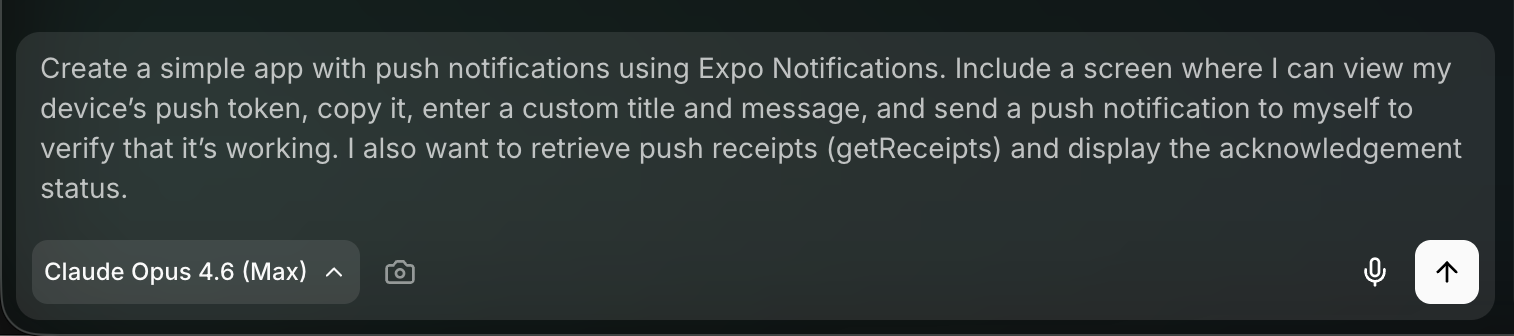
“Create an app with push notifications. Include a screen where I can view my push token, send a test notification to myself, and verify it’s working.”Or describe push notifications as part of a larger app:
“Build a task manager app that sends push notification reminders when tasks are due.”
Step 2: Let the AI Build It
Vibecode’s AI will generate your app with all the push notification code already wired up. This includes the notification handler, token registration, permission requests, and the send/receive logic.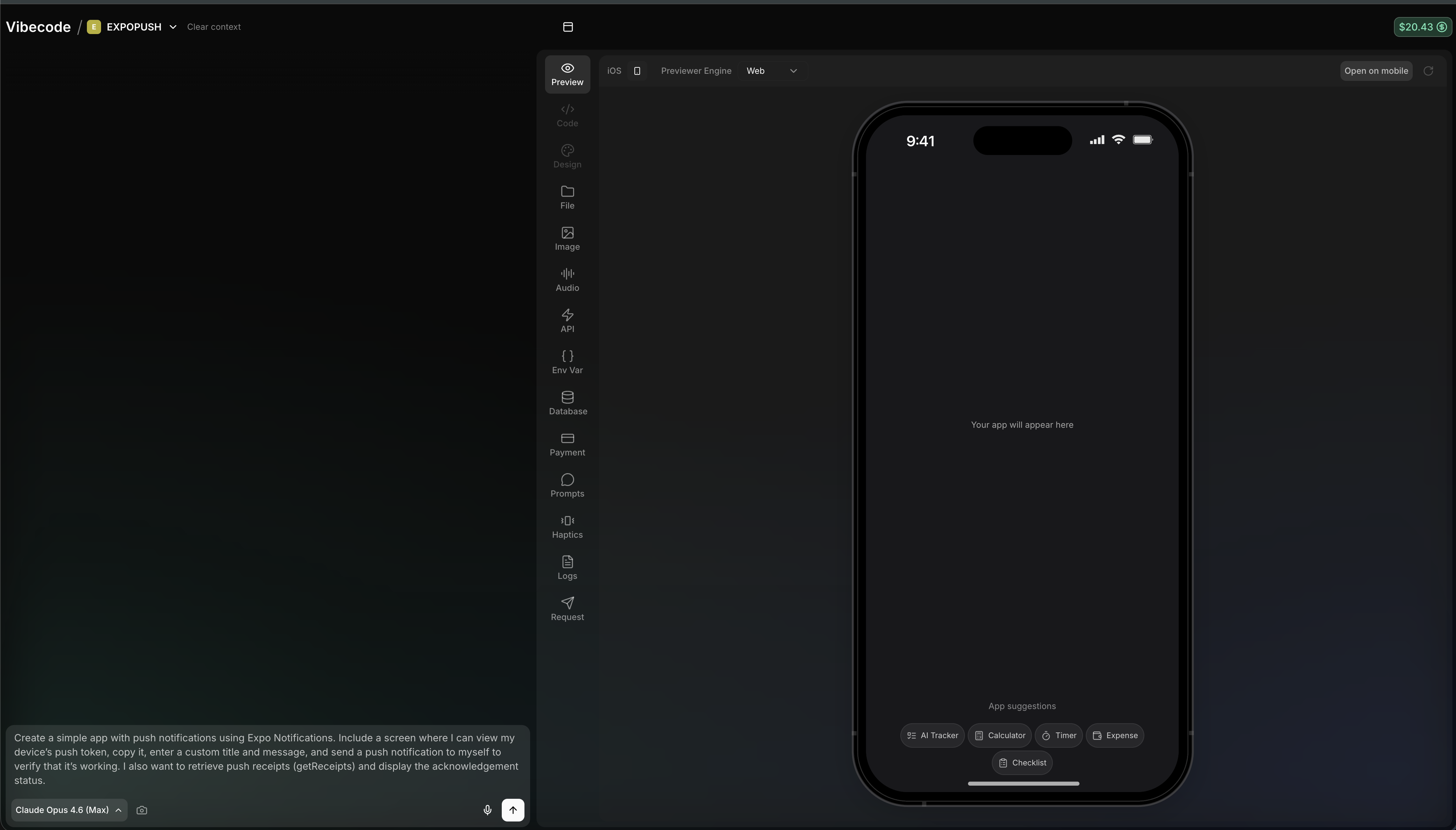
Step 3: Review the Generated App
Once done, you’ll see your app in the preview panel. The AI handles all the technical details:- Notification handler — tells the OS to show notifications even when the app is open
- Token registration — gets a unique push token for your device
- Permission requests — asks the user to allow notifications
- Send function — sends notifications via the Expo Push API
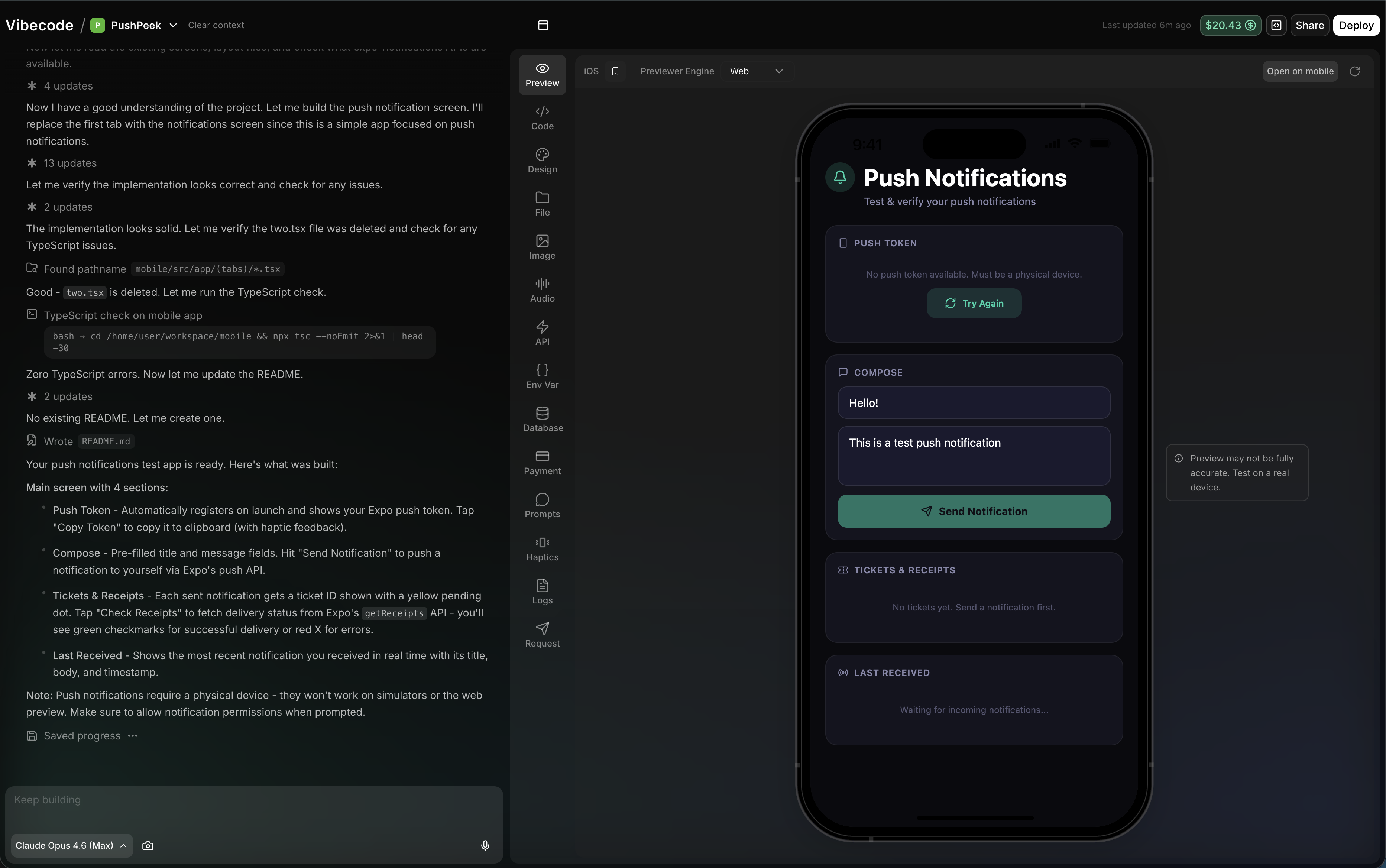
The app preview won’t show a real push token yet — that only works on a physical device after building. Don’t worry if you see “No push token available” in the preview.
Part 2: Submit to the App Store
Push notifications require a native iOS build. The easiest way to do this in Vibecode is through the Submit to App Store flow, which uses Expo Launch to handle everything.Step 4: Start the Submission
Click Share in the top-right corner of Vibecode, then select Submit to App Store.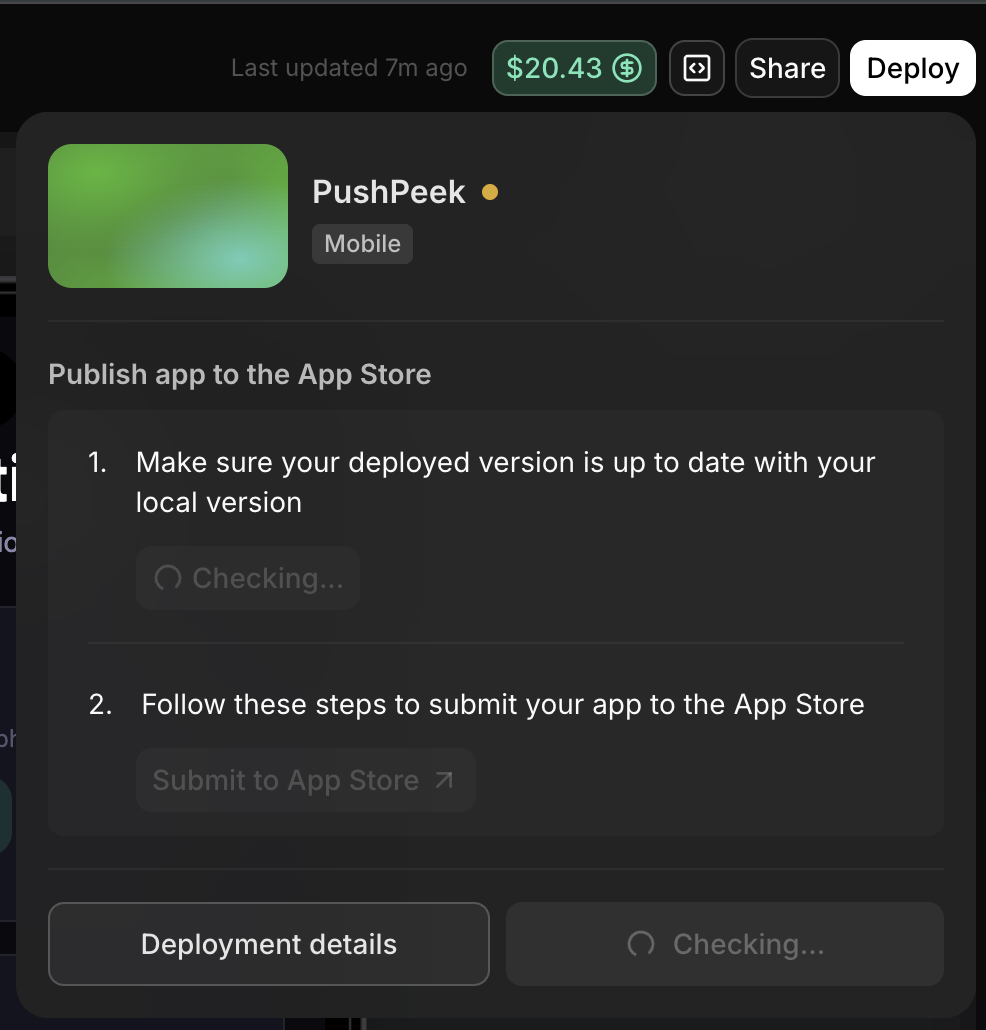
Step 5: Walk Through the Setup Wizard
The wizard guides you through four steps. Click Get Started to begin.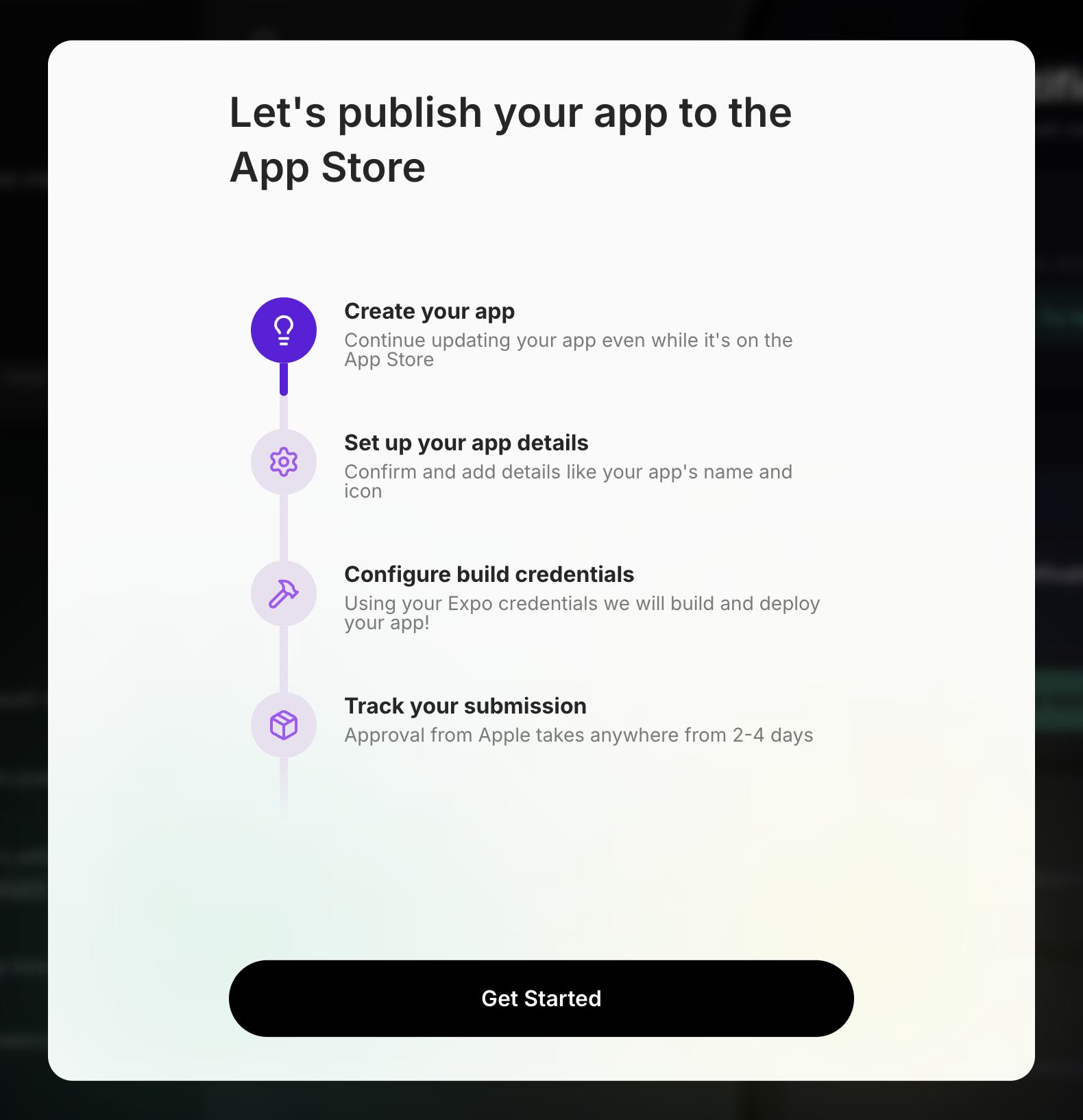
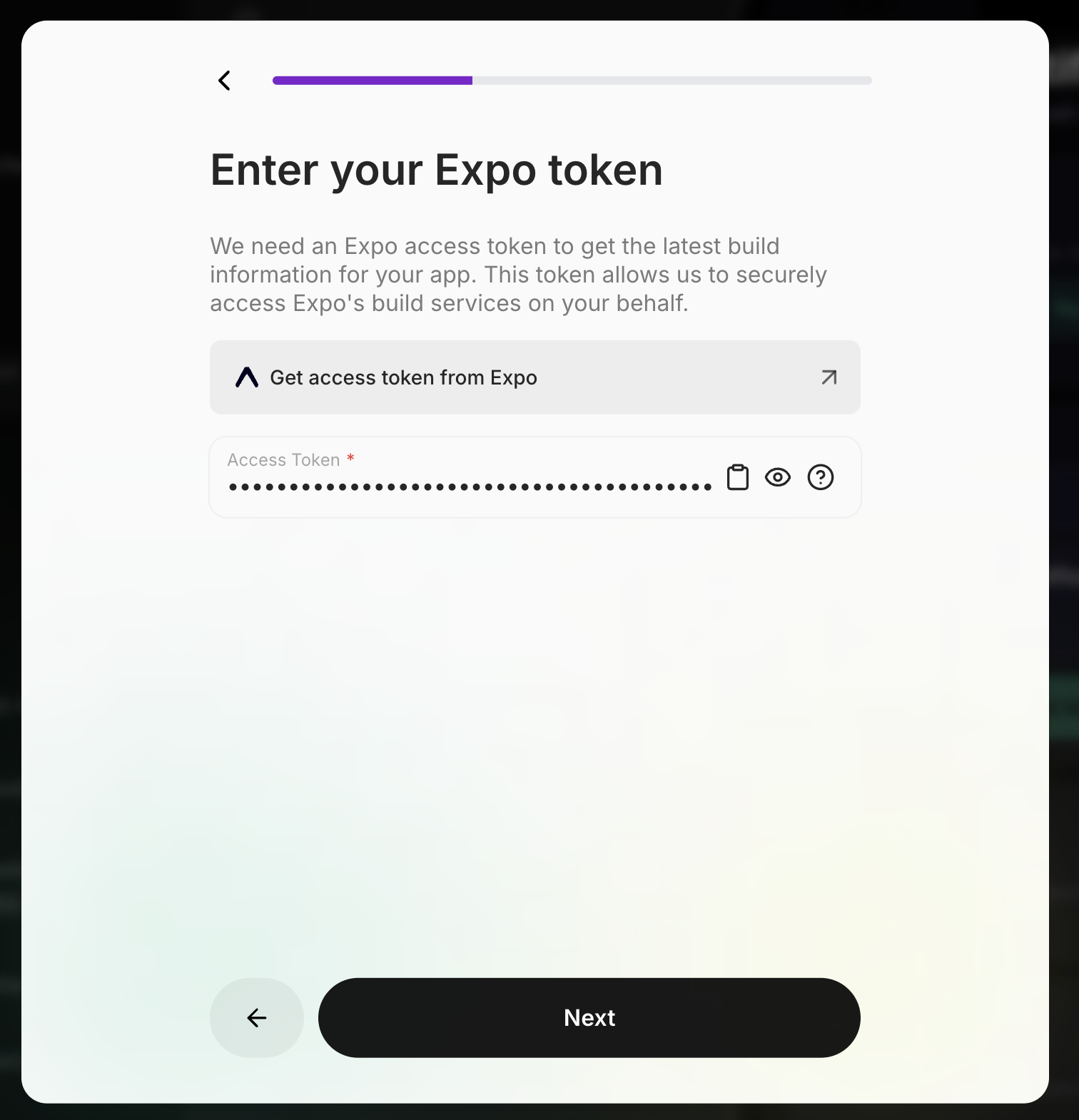
Step 6: Enter Your Expo Access Token
You need an Expo access token so Vibecode can build your app.- Click Get access token from Expo to open the Expo dashboard
- Go to Settings → Access Tokens
- Create a new token, copy it
- Paste it into the field
Step 7: Confirm Your App Details
Review your app name, version number, and bundle ID. These are auto-generated — you usually don’t need to change them.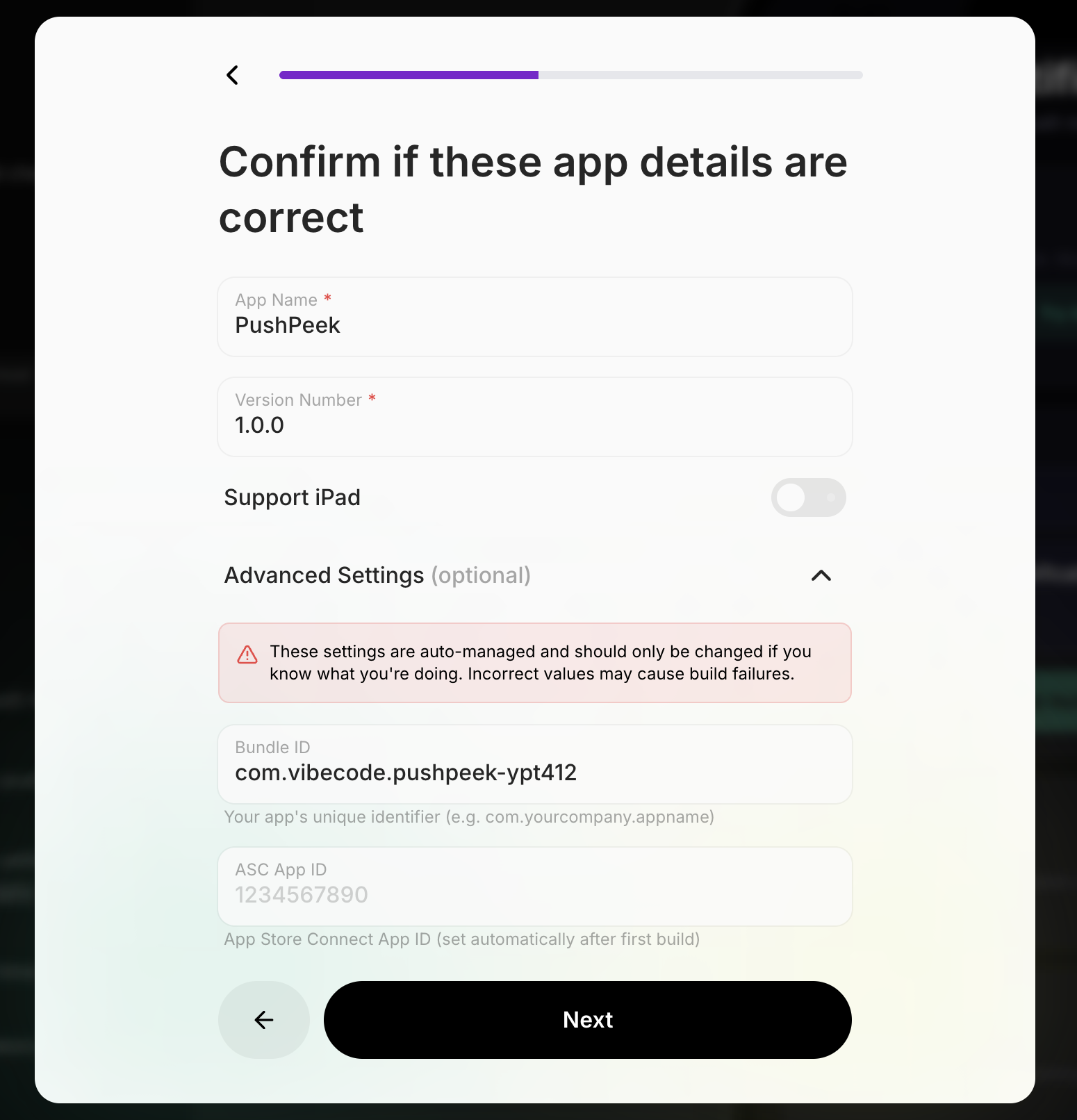
Step 8: Complete the Setup
Once everything is verified, you’ll see the “Everything is ready!” screen. Click Start Expo Launch to begin the build process.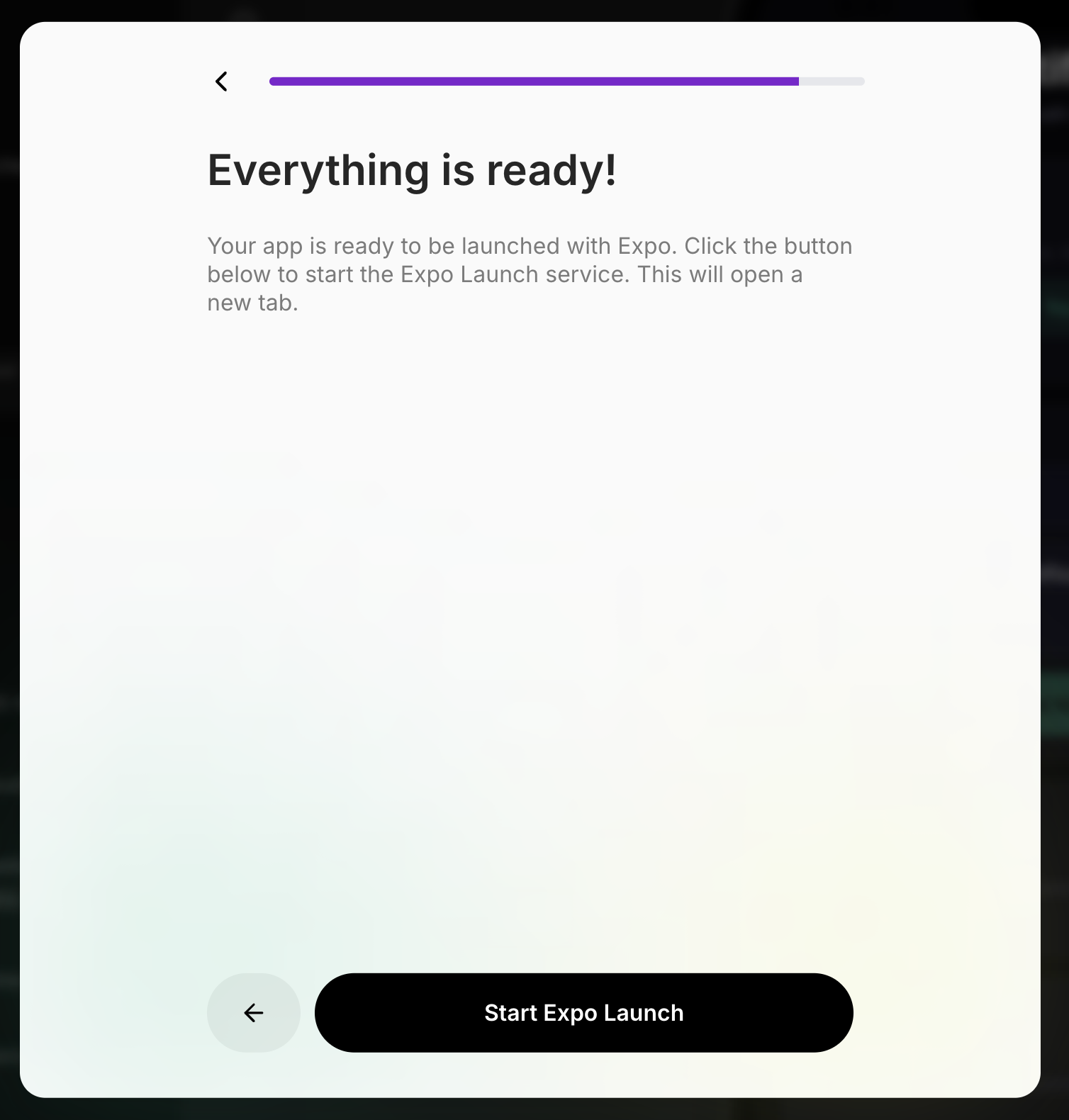
Step 9: Expo Launch — Choose Your Project
Expo Launch opens in a new tab. Walk through each step:- Sign in with Expo — uses your Expo account
- Choose Expo project — select the project that was created for your app
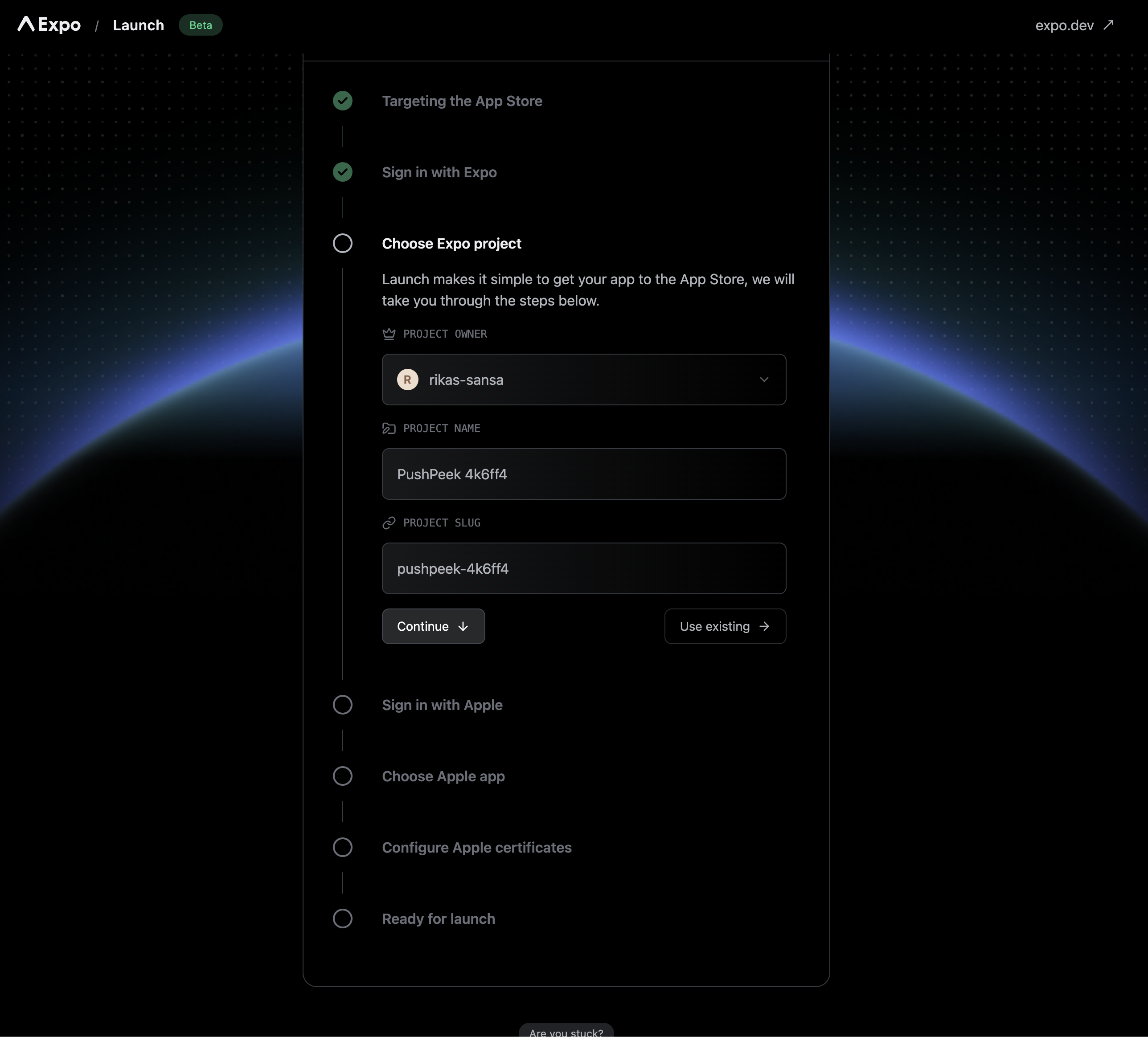
Important: Take note of the Project Slug shown here (e.g.,
pushpeek-4k6ff4). You’ll need it in Part 5 when configuring your app.Step 10: Sign In with Apple & Configure Certificates
Continue through the remaining Expo Launch steps:- Sign in with Apple — enter your Apple Developer credentials
- Choose Apple app — select or create your app on the App Store
- Configure Apple certificates — Expo handles this automatically
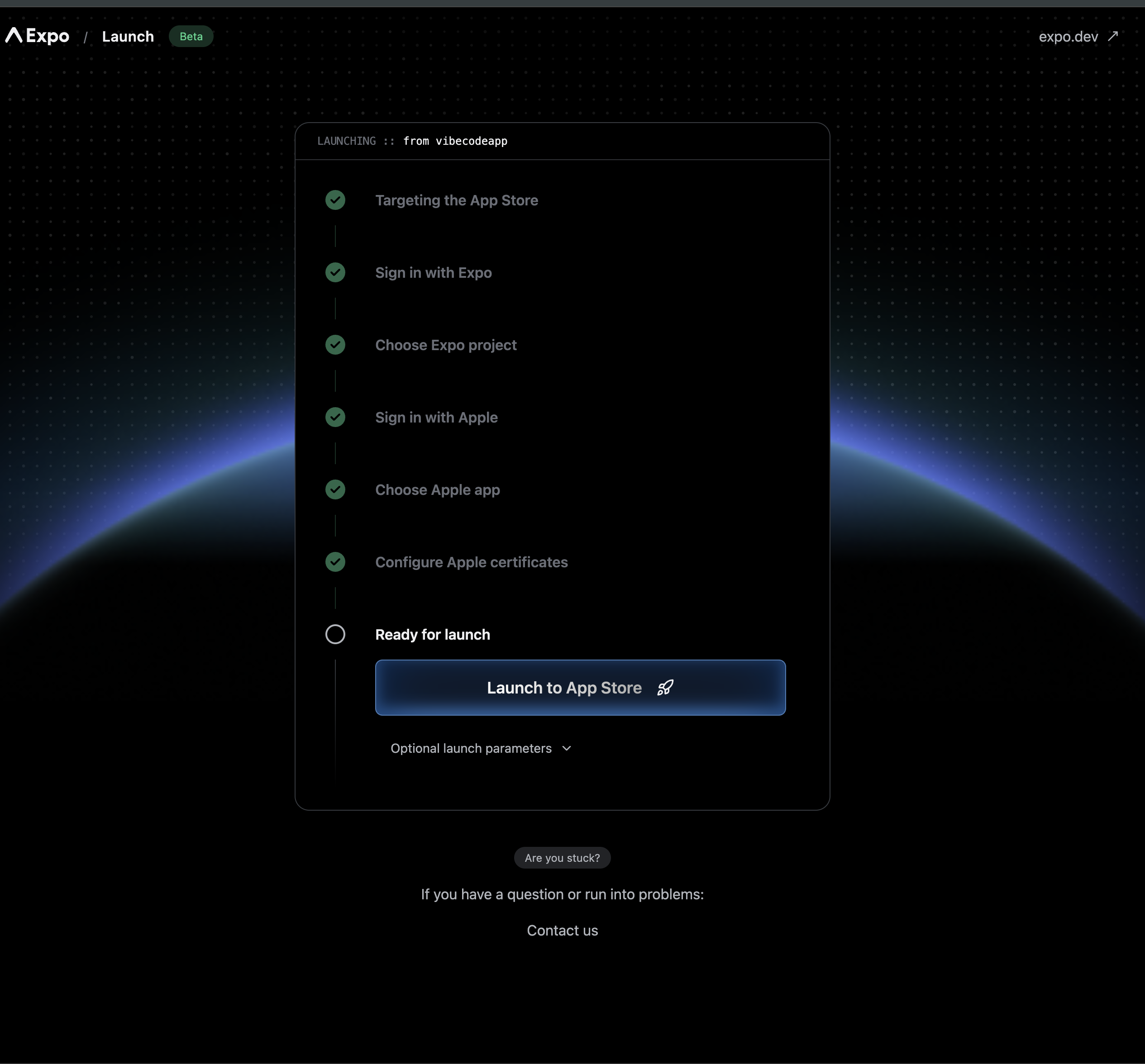
Step 11: Build in Progress
After launching, you’ll see a confirmation page. The build process takes about 15–30 minutes.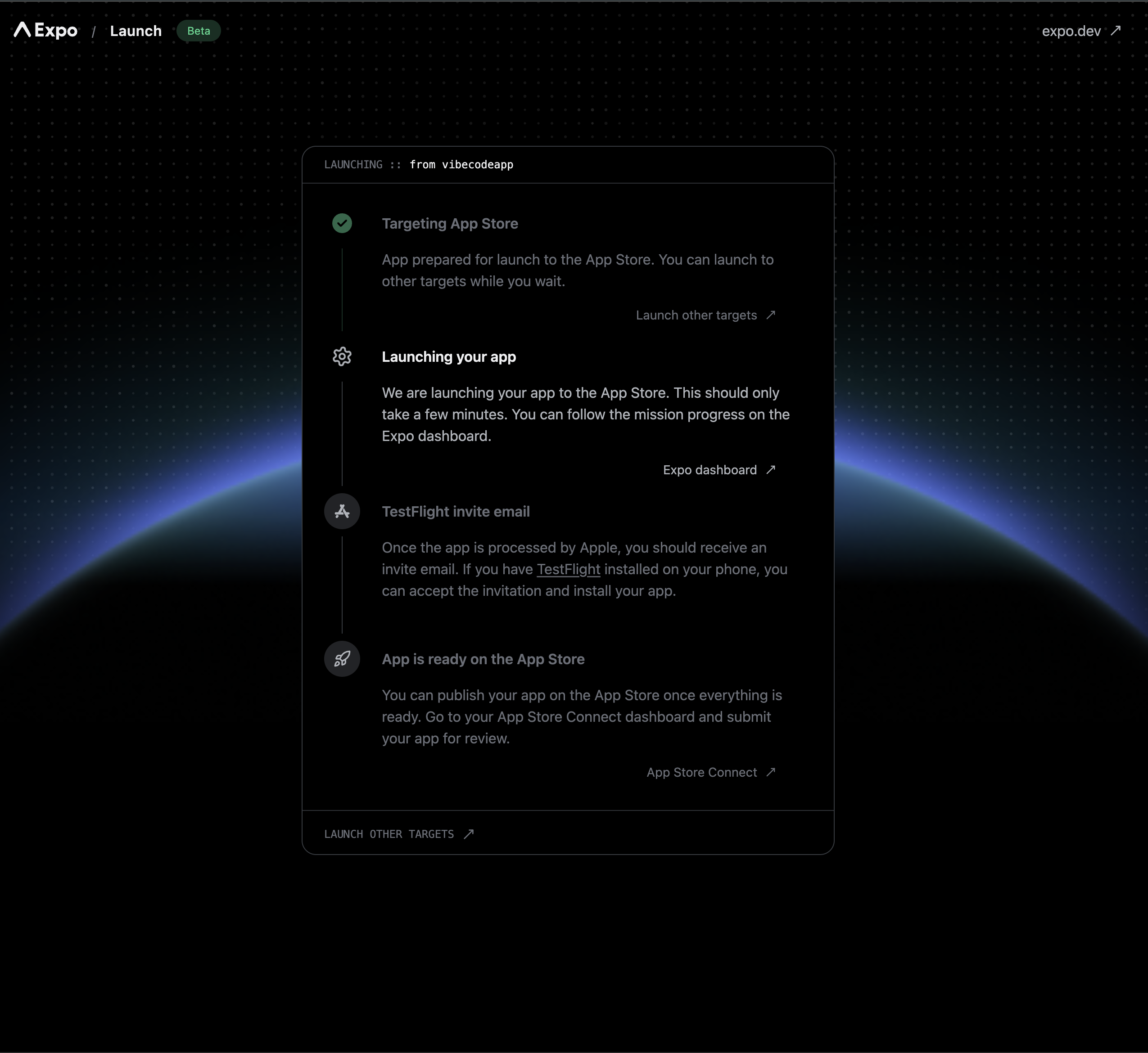
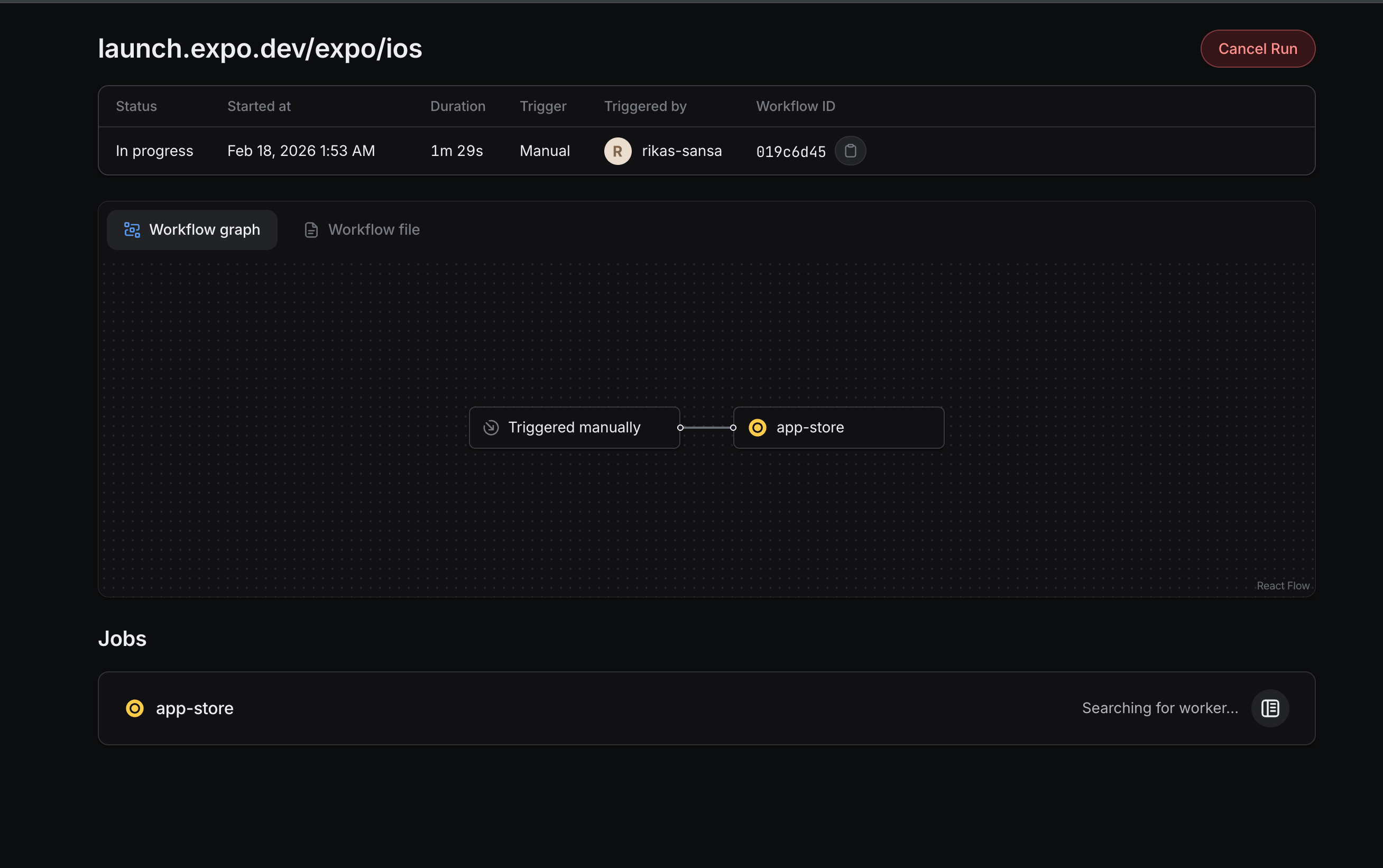
Step 12: Build Complete — Install via TestFlight
Once the build finishes, it’s automatically uploaded to App Store Connect. You’ll see it as Complete in the TestFlight section.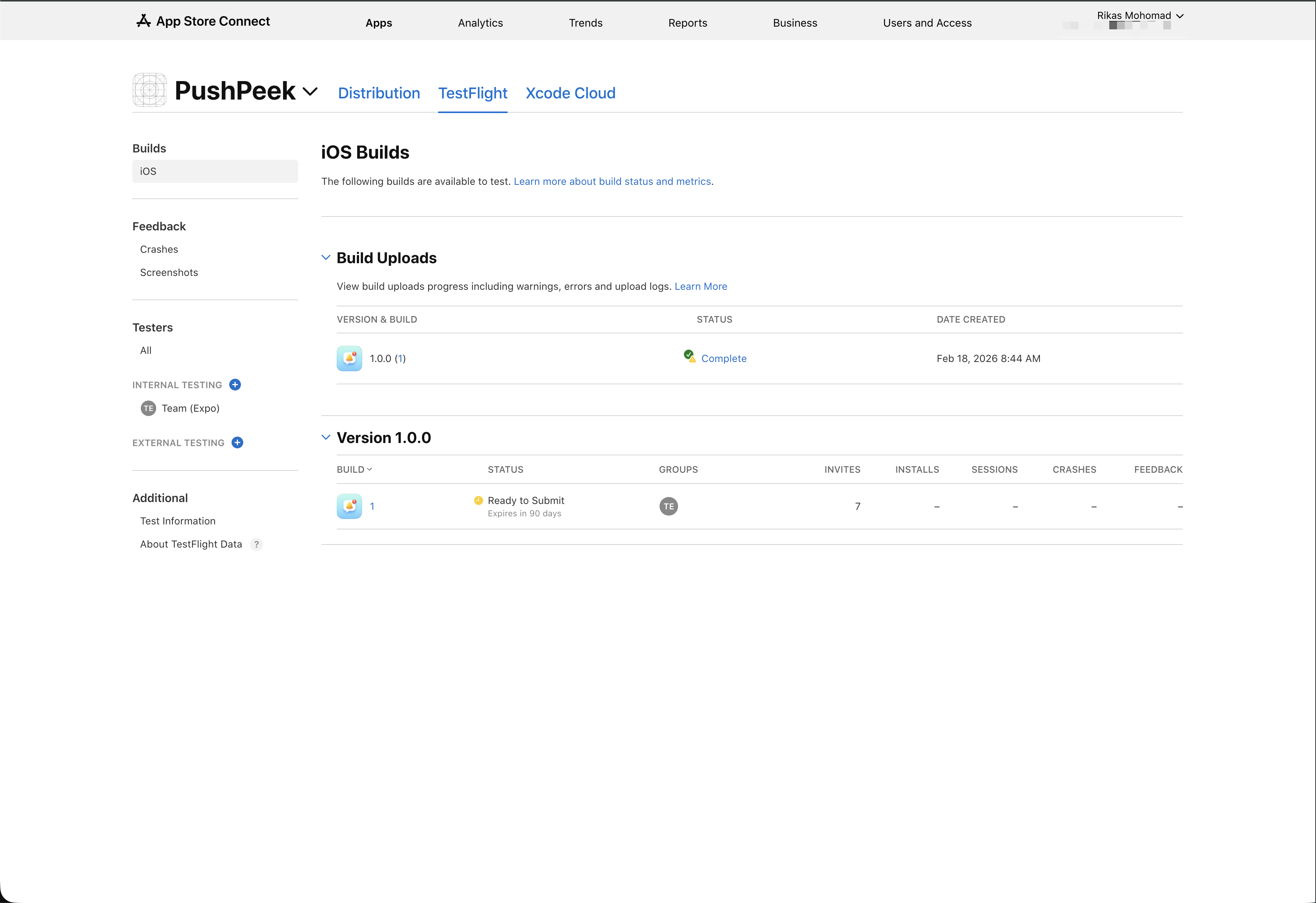
You should receive a TestFlight invite email. If you don’t, check that your Apple ID email is added as a tester in App Store Connect under Users and Access.
Part 3: Create an Apple Push Notification Key
Your app needs an APNs key (Apple Push Notifications service key) to send push notifications through Apple’s servers. You create this once in the Apple Developer portal and upload it to Expo.Step 13: Open the Apple Developer Portal
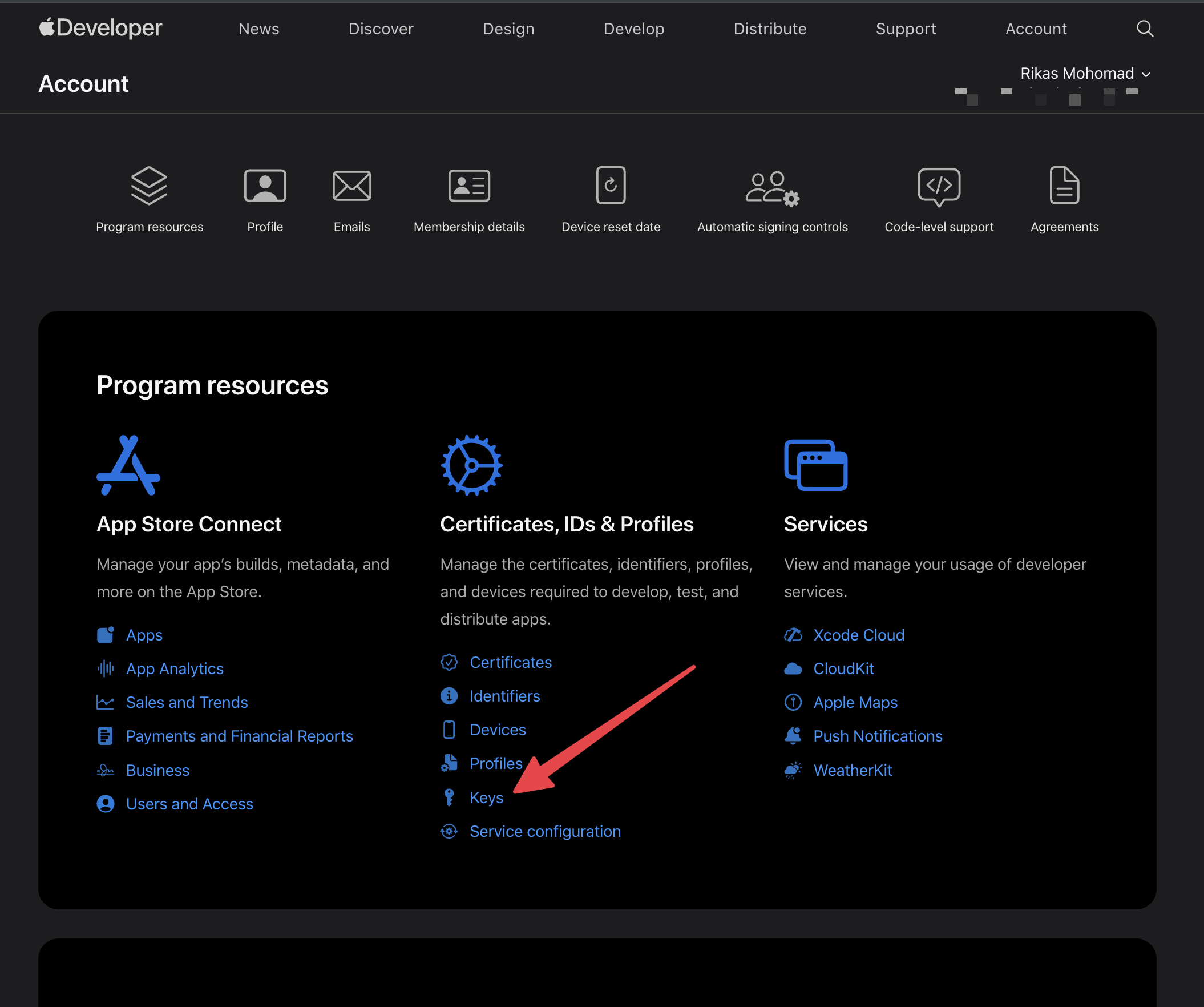
Go to developer.apple.com and sign in. You’ll see the Account page with Program resources.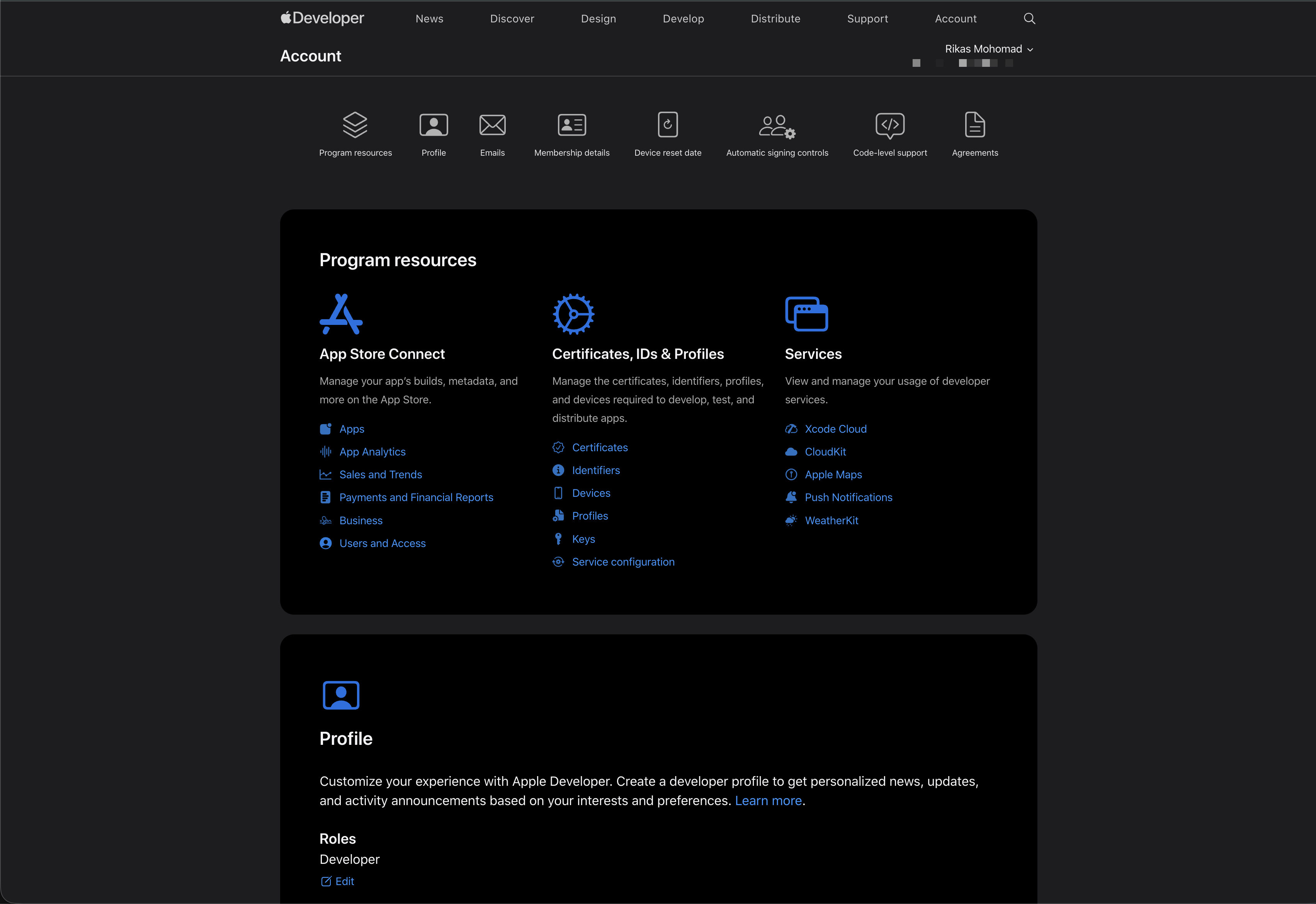
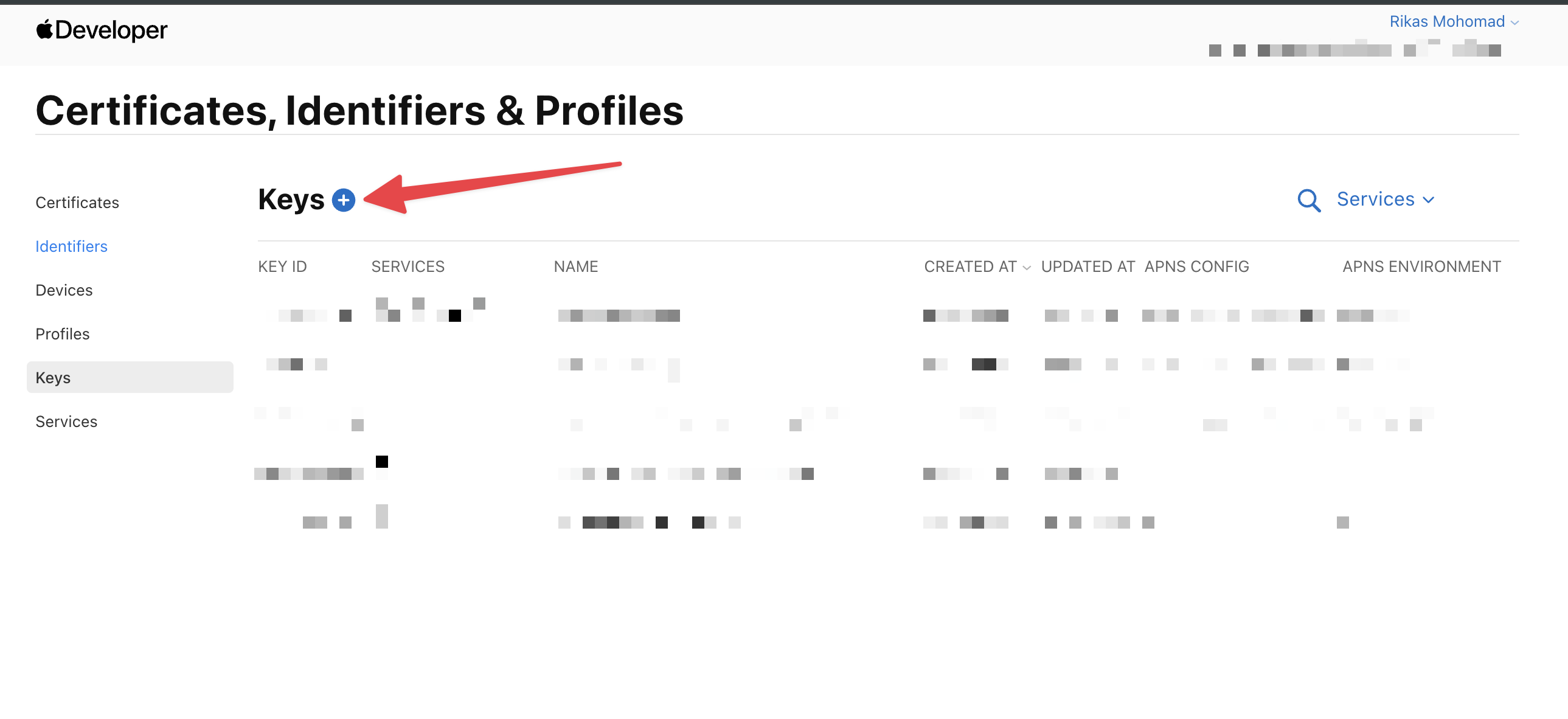
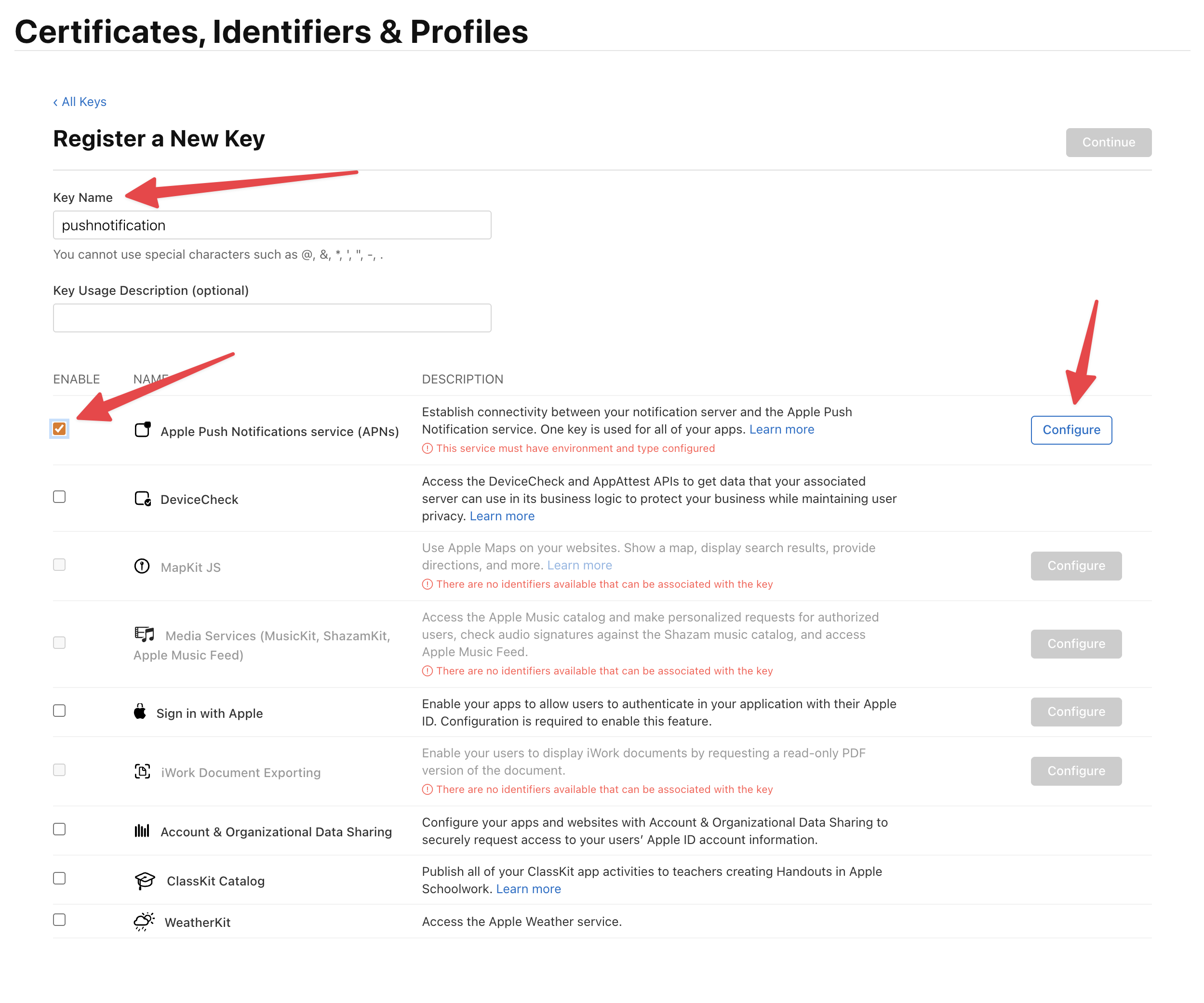
Step 14: Register a New Key
Fill in the registration form:- Key Name — give it a descriptive name (e.g., “pushnotification”)
- Enable the checkbox next to Apple Push Notifications service (APNs)
- Click Configure
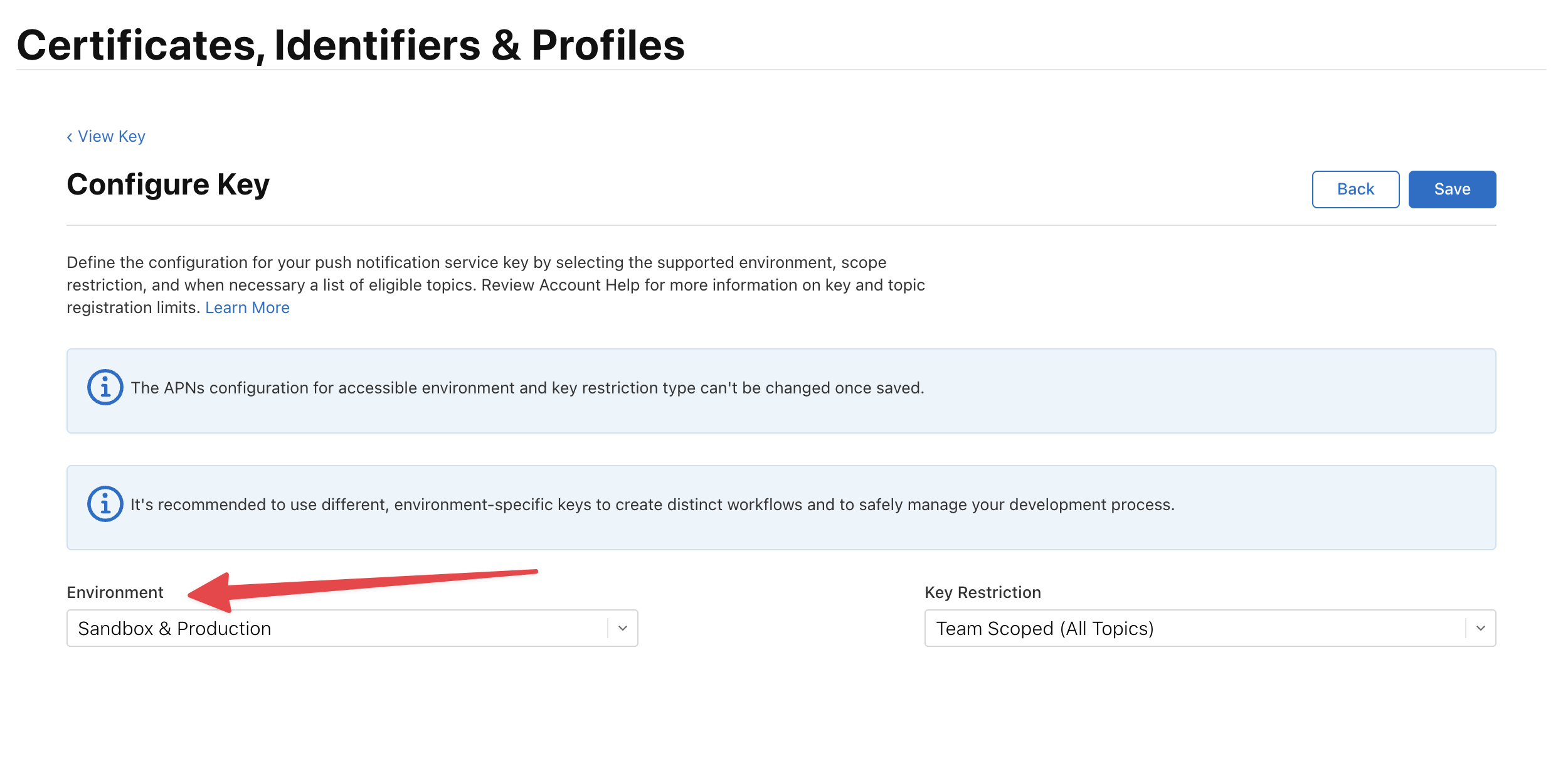
Step 15: Configure the Key
On the configuration page:- Environment — select Sandbox & Production (this is the default and what you want)
- Key Restriction — leave as Team Scoped (All Topics)
- Click Save, then Continue, then Register
Step 16: Download Your Key and Note the Key ID
After registration, you’ll see a Download button and the Key ID displayed below. You need both of these.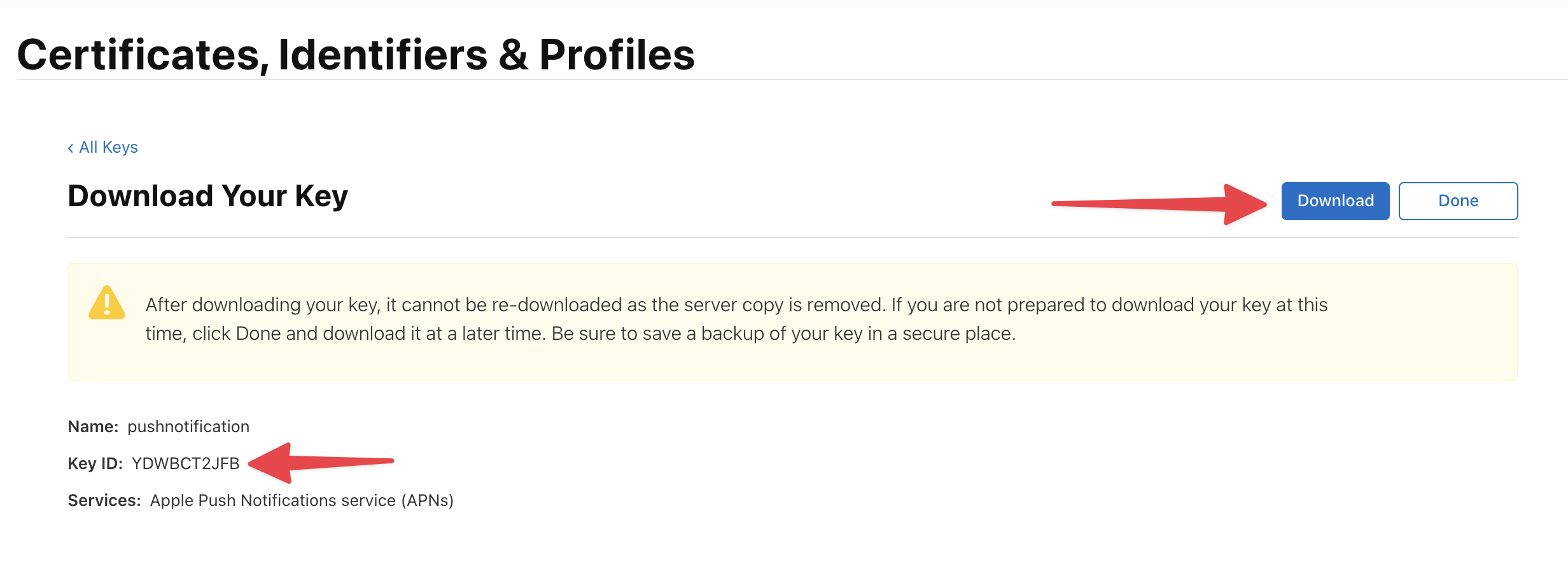
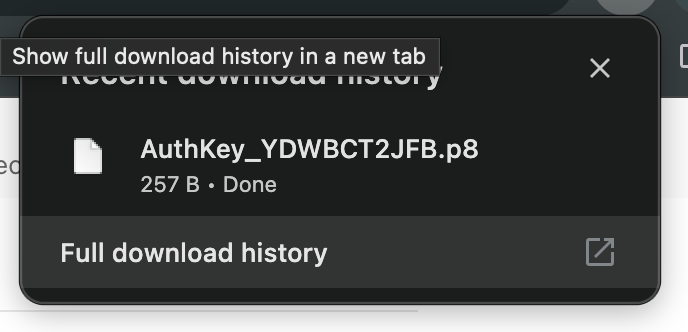
- Click Download — you’ll get a
.p8file (e.g.,AuthKey_YDWBCT2JFB.p8) - Copy the Key ID shown on the page (e.g.,
YDWBCT2JFB) — you’ll enter this in Part 4 when uploading to Expo
Part 4: Upload Push Key to Expo
Now you need to upload the APNs key you just downloaded to your Expo project, so Expo can use it to send notifications through Apple’s servers.Step 17: Open Expo Project Credentials
Go to expo.dev, find your project, and navigate to Credentials in the left sidebar. Under Service credentials, you’ll see a Push Key section. Click Add a Push Key.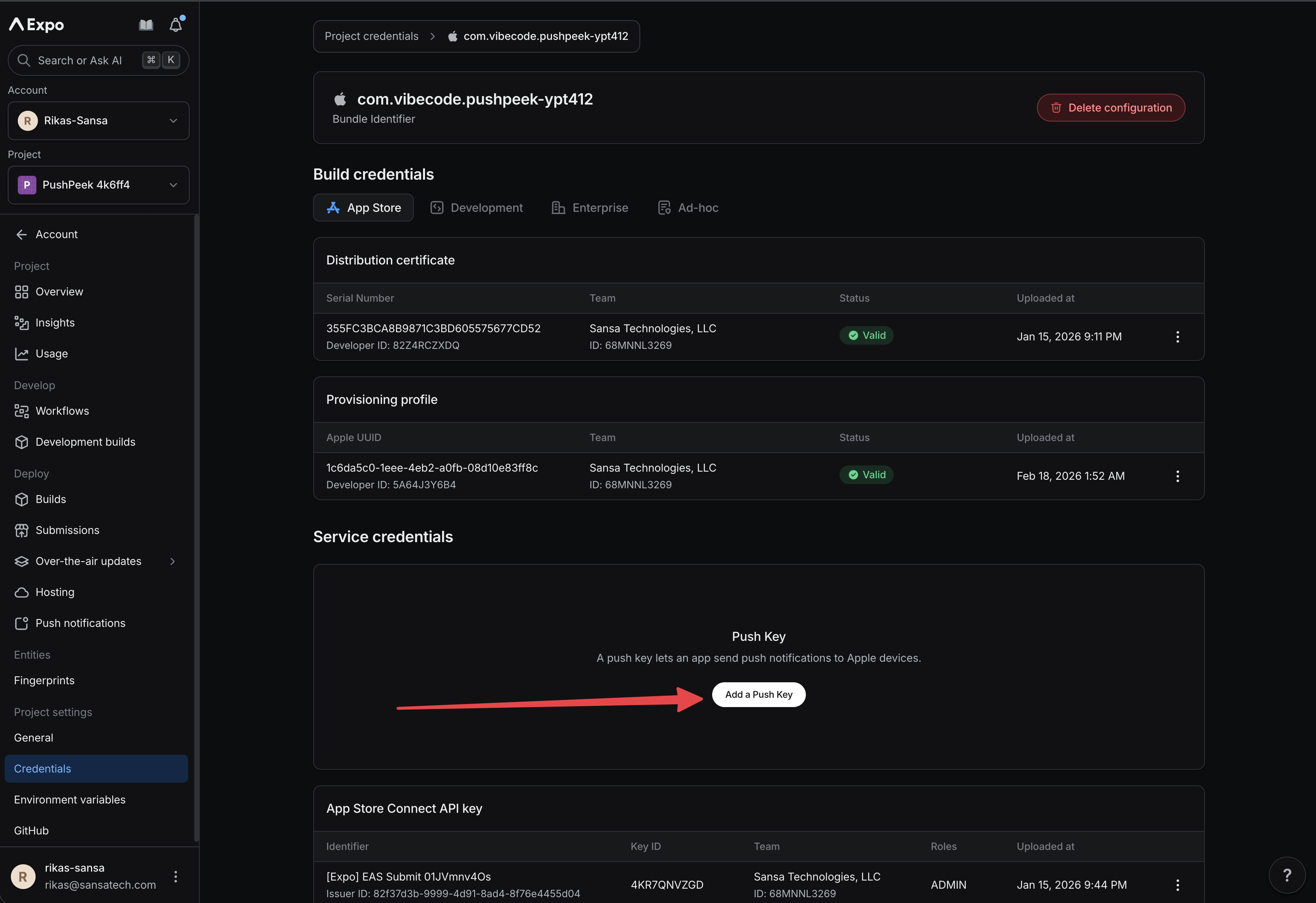
Step 18: Upload the .p8 Key File
In the “Change Push Key” dialog:- Click Upload new push key
- Click Upload File and select the
.p8file you downloaded earlier (e.g.,AuthKey_YDWBCT2JFB.p8) - Enter the Key Identifier — this is the Key ID shown on Apple’s download page (e.g.,
YDWBCT2JFB). This must match exactly. - Your Apple Team ID should auto-fill
- Click Save
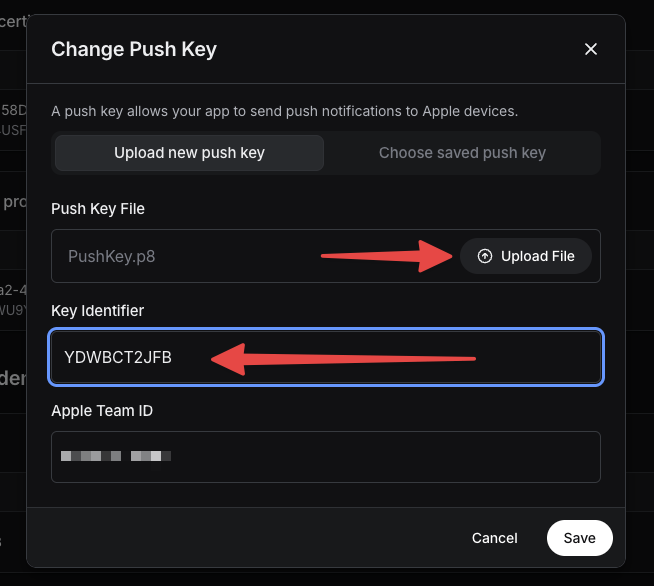
Step 19: Verify Credentials Are Complete
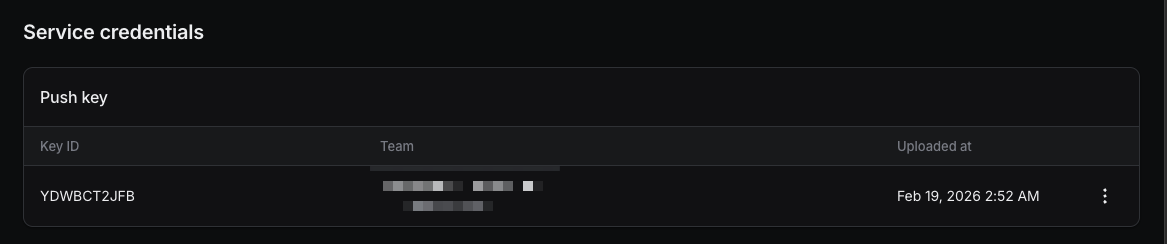
After uploading, your credentials page should show all green statuses — Distribution certificate, Provisioning profile, and Push key all valid.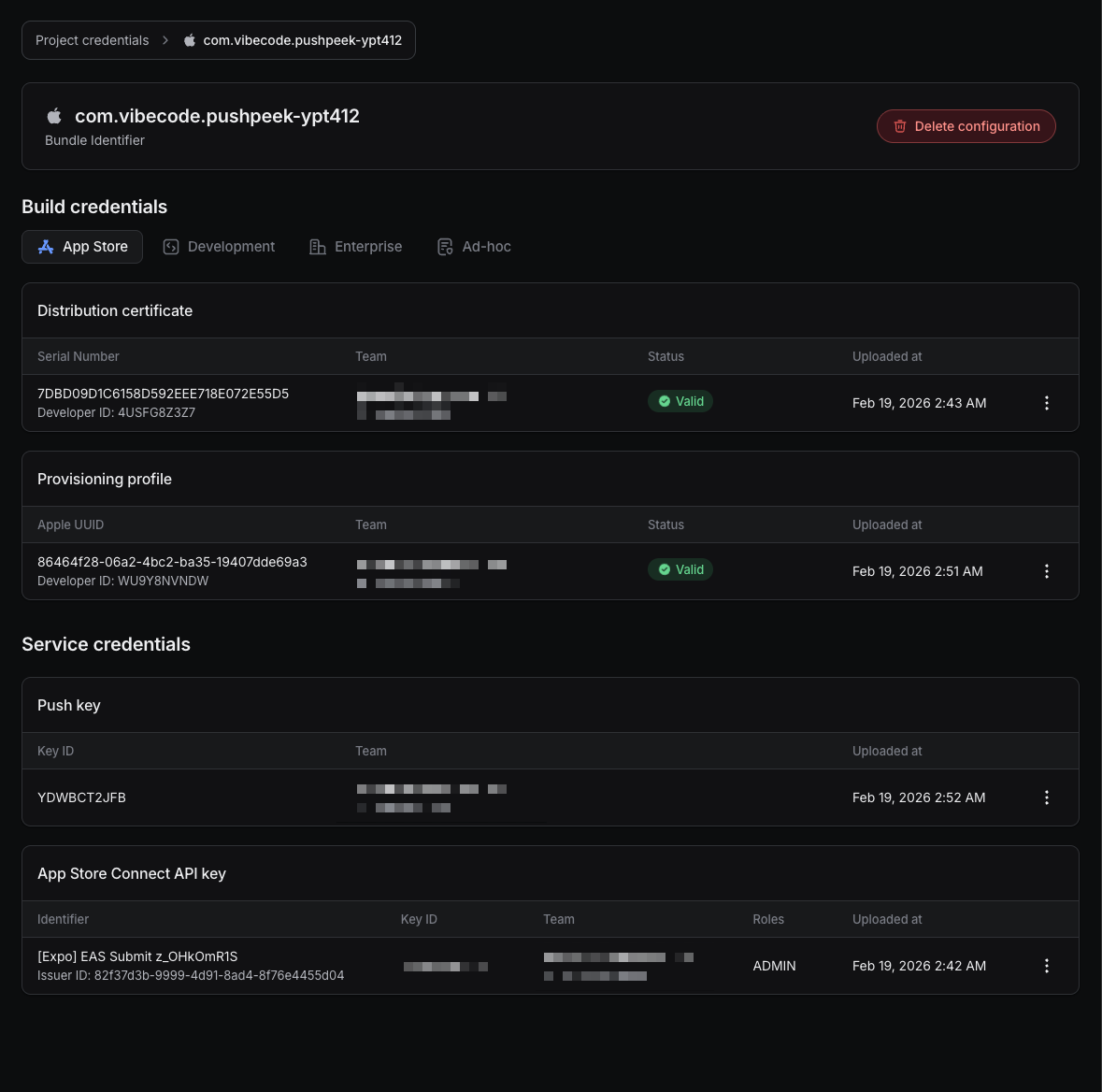
Part 5: Configure Your Project
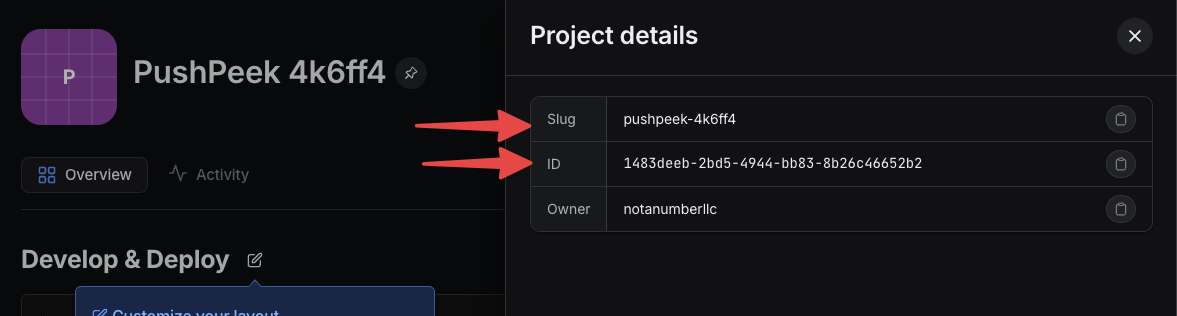
Your app needs two things from your Expo project to work with push notifications: the Project ID (for generating push tokens) and the Slug (to link your app to the correct Expo project). You’ll find both on the Expo dashboard and tell the AI to add them to your app’s configuration.Step 20: Find Your Slug and Project ID
Go to your project on expo.dev and click the project name to open the Project details panel. Copy both values:- Slug — your project’s unique URL-friendly name (e.g.,
pushpeek-4k6ff4). This goes in the"slug"field ofapp.json. - ID — your project’s unique identifier (e.g.,
1483deeb-2bd5-4944-bb83-8b26c46652b2). This goes inextra.eas.projectIdinapp.json.
Step 21: Tell the AI to Configure Your App
Go back to Vibecode and send a message like this to the AI, with both your slug and project ID:“Push notifications need the Expo project ID to work. Update app.json:Replace the values with what you copied from expo.dev.
- Set the slug to YOUR-SLUG-HERE
- Add extra.eas.projectId with my project ID: YOUR-PROJECT-ID-HERE
- Add aps-environment: production to iOS entitlements
- Add UIBackgroundModes: [“remote-notification”] to iOS infoPlist
- Add expo-notifications to plugins”

app.json with all the required configuration — the slug, project ID, iOS entitlements, and notification plugin:
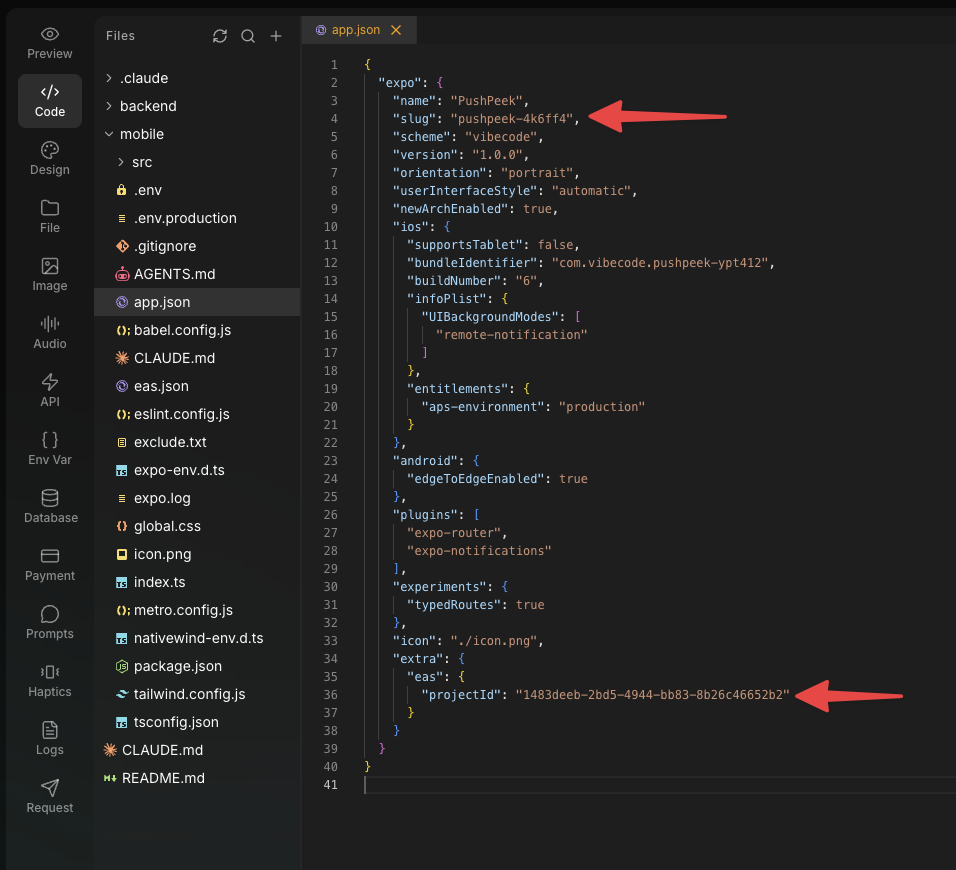
Double-check: Open the Code tab in Vibecode and look at
app.json. Verify all five values are present:"slug"matches the slug from expo.devextra.eas.projectIdcontains your project IDaps-environmentis set to"production"in iOS entitlementsUIBackgroundModesincludes"remote-notification"in iOS infoPlist"expo-notifications"is listed in plugins
Step 22: Deploy the Updated Build
After the AI updates the configuration, you need to deploy a new build so the changes take effect. Go through the Submit to App Store flow again (Share → Submit to App Store) to create a new build with the updated configuration. Once the new build is ready, install it via TestFlight on your device.Part 6: Test Push Notifications
Step 23: Open the App and Allow Notifications
Open your app from TestFlight on your physical device. The first time you open it, you’ll see a permission prompt asking to allow notifications. Tap Allow. Your app should now:- Request notification permissions
- Register with Apple’s push notification service
- Display your unique Expo Push Token (starts with
ExponentPushToken[...])
Step 24: Send a Test Notification
If your app has a send button (like the test app we built), enter a title and message and tap Send Notification. Within a few seconds, you should receive a push notification on your device.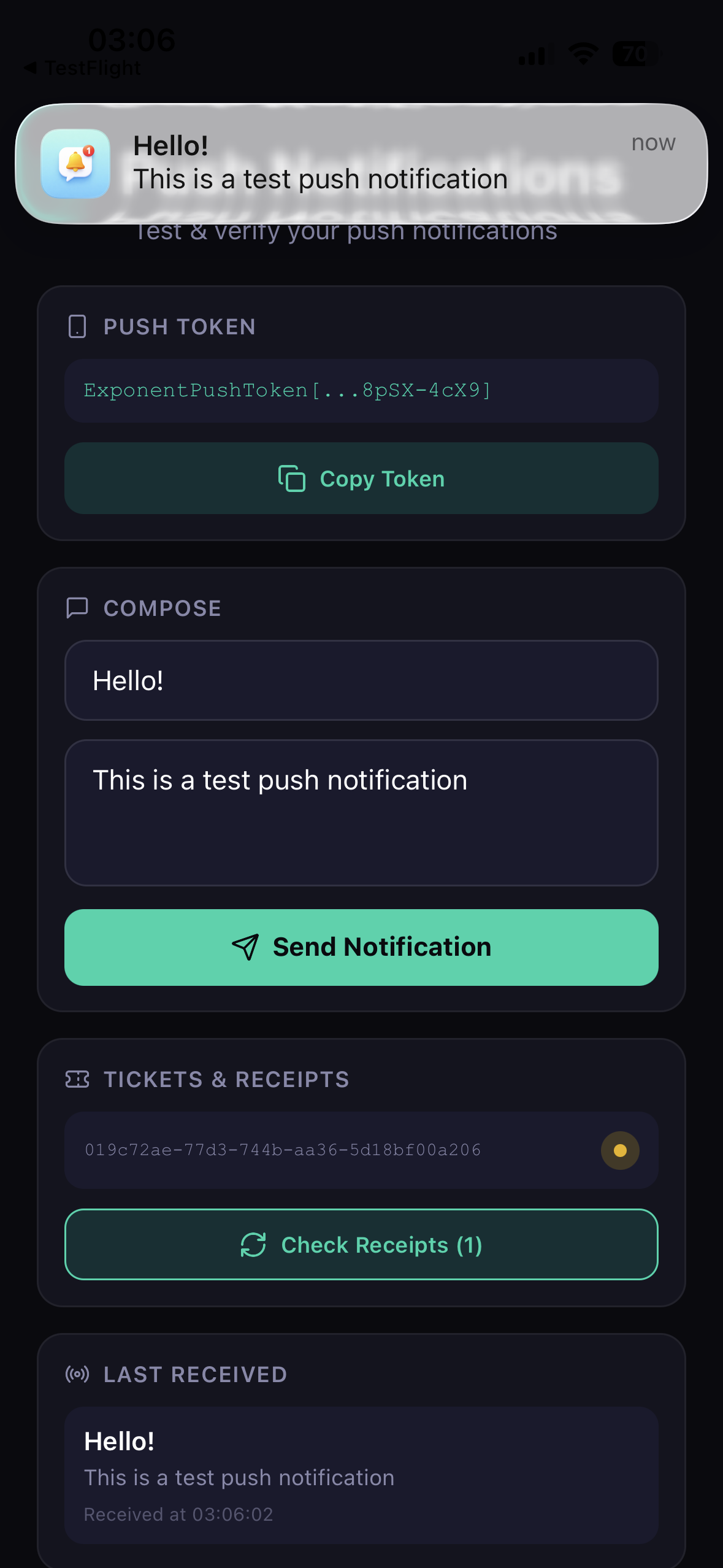
How It All Fits Together
Here’s a quick summary of what each piece does and why it’s needed:Troubleshooting
”No push token” or token is empty
- Are you on a physical device? Simulators can’t get push tokens. You must test on a real iPhone/iPad via TestFlight.
- Is the Project ID set? Check that
extra.eas.projectIdis in yourapp.jsonand matches the ID from expo.dev. - Does the slug match? The
"slug"in yourapp.jsonmust match the slug shown on your Expo project page. A mismatch causes token registration to fail. - Are permissions granted? Go to Settings → your app → Notifications on your device and make sure notifications are enabled.
Notifications don’t appear
- Is the notification handler set up? The AI should have added
Notifications.setNotificationHandler()at the top of your main file. Without it, foreground notifications are silently swallowed. - Are you testing from TestFlight? Push notifications don’t work in the Vibecode preview or Expo Go.
- Is
aps-environmentset toproduction? This must be in yourapp.jsoniOS entitlements for TestFlight and App Store builds.
Notifications work in development but not in production
- Check that
aps-environmentis set to"production"(not"development") in yourapp.json. - Make sure you deployed an updated build after changing the configuration.
”DeviceNotRegistered” error in receipts
The push token has expired or the app was uninstalled. Re-open the app to get a fresh token.Build fails after adding push notifications
Make sure you’re using the correct version ofexpo-notifications for your Expo SDK version. For Expo SDK 53, use version ~0.31.5. The AI handles this automatically, but if something goes wrong, tell it: “Use expo-notifications version ~0.31.5”
Need help? Reach out via live support chat in the app for the fastest
support. You can also join our Discord
community to connect with other Vibecode
builders.
For Developers: Technical Details
What the AI configures in app.json
What the AI configures in app.json
slug— must match the slug from your Expo project on expo.dev. A mismatch causes build or token failures.plugins: ["expo-notifications"]— links the native module during buildUIBackgroundModes: ["remote-notification"]— allows background notification delivery on iOSaps-environment: "production"— uses Apple’s production push service (required for TestFlight/App Store)projectId— must match the ID from your Expo project. Required forgetExpoPushTokenAsync()to work
How token registration works
How token registration works
getExpoPushTokenAsync in a Promise.race with a 10-second timeout. In rare cases (network issues, misconfigured credentials), the call can hang indefinitely:How to send notifications from a backend
How to send notifications from a backend
For production apps, you’ll typically send notifications from your backend server rather than directly from the app. Here’s a basic Hono endpoint:You can also store push tokens per user in your database and send targeted notifications to specific users.
Notification handler (required for foreground)
Notification handler (required for foreground)
This must be called at the top level of your main file, outside any component:Without this, notifications received while the app is in the foreground are silently ignored.